

Infrastructure and Hosting Requirements for Dynamics 365

GEt in Touch
| Table |
|---|
Successful deployment of Microsoft Dynamics 365 requires configuration of the software along with a solid foundation of the infrastructural environment. Regardless of whether your organization decides to deploy D365 in an on-premise model or cloud-hosted solution, understanding your hardware, software, and networking requirements is the ticket to performance and reliability. A trusted Microsoft Dynamics 365 partner in USA can guide you through the entire process to provide seamless integration and optimal performance.
Dynamics 365 Minimum System Requirements
Dynamics 365 Business Central On-Premise Requirement
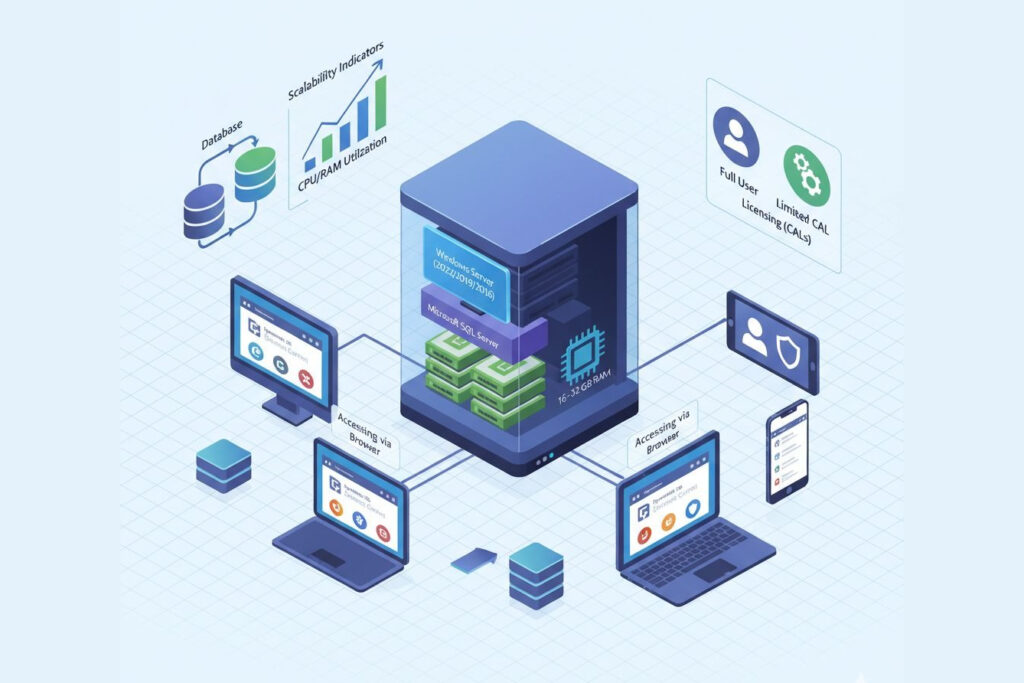
Hardware, OS, SQL Server Versions
For Dynamics 365 Business Central On-Premise, the core components required:
- Operating System: Windows Server 2022, 2019, or 2016 (Standard or Datacenter editions).
- Database Server: Microsoft SQL Server 2022, 2019, or 2017 with Analysis Services.
- Hardware: At least 4 cores (recommended 8+) and 16–32 GB RAM for small to medium deployments.
- Storage: SSDs are highly recommended for database performance, with 100 GB or more free space for application and data files.
Supported Clients and Browsers
Storage, Memory, CPU
Licensing and CALs
CRM Dynamics On-Premise Requirements
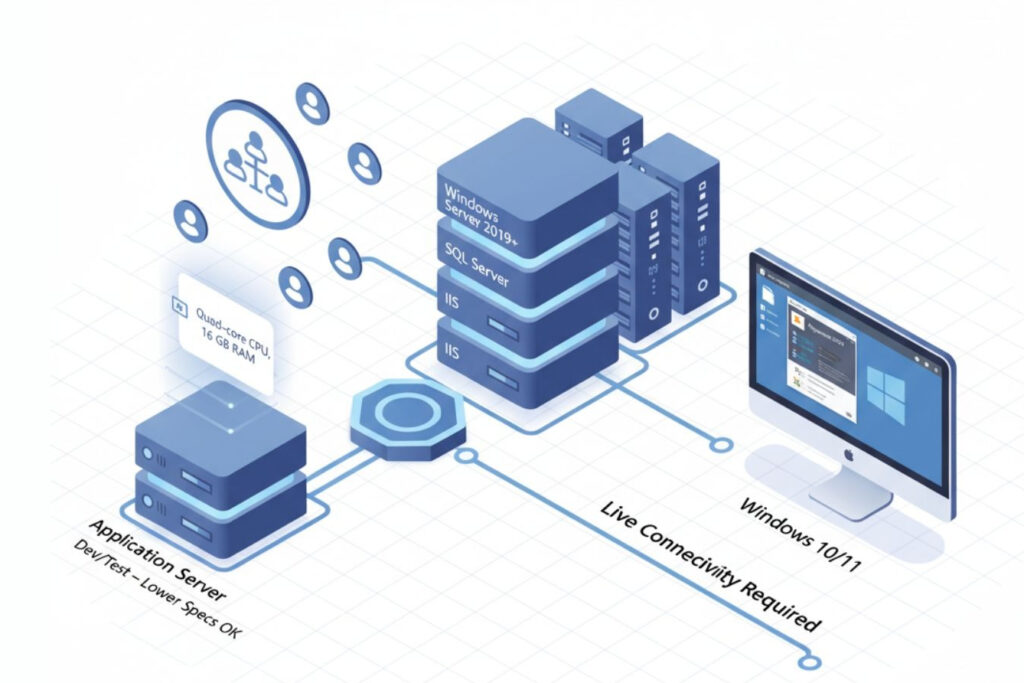
Environment Prerequisites
For an on-premise installation of Dynamics 365 CRM (Customer Engagement), you will need:
- Operating System: Windows Server 2019 or newer.
- Authentication: Active Directory integration for authentication.
- Database: SQL Server.
- Web Hosting: IIS (Internet Information Services) for web hosting.
Server & Workstation Specs
Application servers should contain at least 16 GB of RAM and quad-core CPU’s. While development or test environments can work with lower specifications, for a production system consider redundancy and load balancing to allow for scale.
Outlook Client Requirements
If you are to connect with Dynamics 365 App for Outlook you would need to ensure the users are on Outlook 2019 (or Microsoft 365) on Windows 10/11. The app also requires consistent connectivity to the Dynamics server or online instance.
Note: The information above outlines the current cloud infrastructure requirements for Microsoft Dynamics 365. As Microsoft frequently enhances its cloud services, these requirements may evolve over time. To review the most up-to-date Dynamics 365 cloud system requirements, visit the official Microsoft documentation: Microsoft Dynamics 365 Cloud System Requirements.
Dynamics 365 Network Requirements
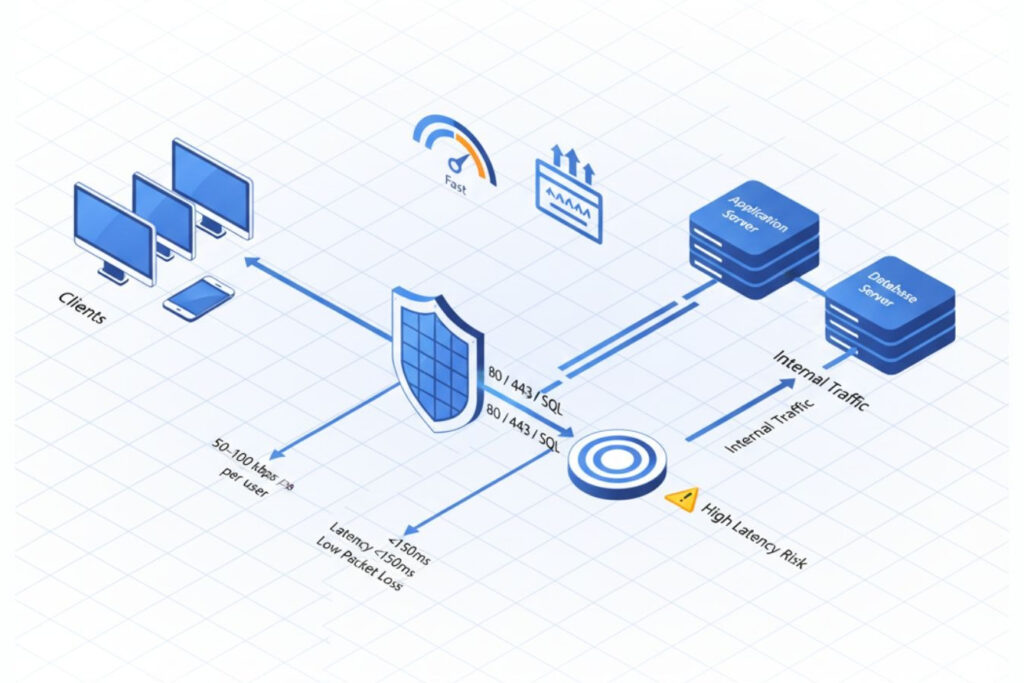
Bandwidth Planning
The requirement for bandwidth is based on the number of users and data transactions. A rule of thumb is to provide bandwidth of at least 50-100 kbps based on the number of active users per session for cloud deployments.
Latency and Reliability
The latency between the client and the Dynamics 365 Server should be under 150 ms for complete user satisfaction. The reliability of the network is also critical. Packet loss or high latency will degrade the loading speeds of forms and the responsiveness of APIs.
Ports and Firewall Rules
Make sure ports 80/443 for HTTP/HTTPS, and any SQL connections are open as standard practice. For on-premise, internal firewalls and reverse proxies should be configured for traffic from client machines to application servers to database servers.
TL;DR: Maintain network latency below 150 ms, bandwidth of 50–100 kbps per active user, and open ports 80/443 for HTTP/HTTPS to ensure fast and secure Dynamics 365 performance.
Dynamics 365 Core Infrastructure Requirements: Cloud vs On-Premises Setup
On-Premise Infrastructure
Cloud Infrastructure
Key Differences: On-Premise vs Cloud
Dynamics 365 Hosting Options
Self-Hosting (On-Premise or Private Cloud)
Partner-Hosted / Managed Services
Dynamics 365 Hosting Requirements Checklist
- Supported versions of Windows Server and SQL Server
- Sufficient RAM, CPU, and SSD storage
- Secure Active Directory and network configuration
- Reliable bandwidth and low latency
- Have a backup and disaster recovery plan
- Proper licensing and CAL management
Implementing Microsoft Dynamics 365 Business Central On-Premise
Planning and Deployment Steps
- Identify deployment topology (single server, multi-tier, or cluster).
- Install prerequisites: SQL Server, IIS, and .NET frameworks.
- Configure Business Central Server and Web Client.
- Implement Active Directory authentication.
- Test connectivity, performance, and user access.
Common Challenges and Solutions
- Performance bottlenecks: Optimize SQL indexing, enable caching, and allocate dedicated memory to SQL Server.
- Network delays: Use LAN connections or optimized VPN routes to reduce latency.
- Maintenance overhead: Automate patching with scripts and use monitoring tools like Azure Monitor or SCOM to ensure system health.
D365 Capacity Planning and Performance Infrastructure
D365 Capacity Planning Essentials
Building High-Performance Dynamics 365 Infrastructure
- Utilize SSD for SQL database storage.
- Implement load balancers for web and API requests.
- Leverage caching and SQL tuning.
- Continuously monitor metrics to capture deviations before they become a problem.
Dynamics 365 Cloud vs On-Premise Comparison
| Dynamics 365 Cloud | Dynamics 365 On-Premise | |
|---|---|---|
|
Setup time
|
Immediate
|
Longer setup
|
|
Updates
|
Automatic |
Manual |
|
Scalability
|
Elastic
|
Hardware-dependent
|
|
Maintenance |
Managed by Microsoft
|
Requires IT team
|
|
Customization
|
Limited access to backend
|
Full access
|
|
security
|
Microsoft Azure compliant
|
Controlled internally
|
Conclusion
The effectiveness of any deployment of Dynamics 365 is directly tied to the alignment of infrastructure selections with business needs. Cloud hosting enables flexibility and less maintenance, while on-premise options provide control and customization. By evaluating your organization’s capacity, security, and compliance needs, you can build an infrastructure that manages performance, prepares for future growth, and ensures high availability. Partnering with a reputable software development agency in USA, like Shaligram Infotech, can help you tailor the perfect solution for your business needs and ensure a seamless Dynamics 365 deployment.
FAQs


 Get In Touch